Part 1: Notify the User and Company Security Contact(s)
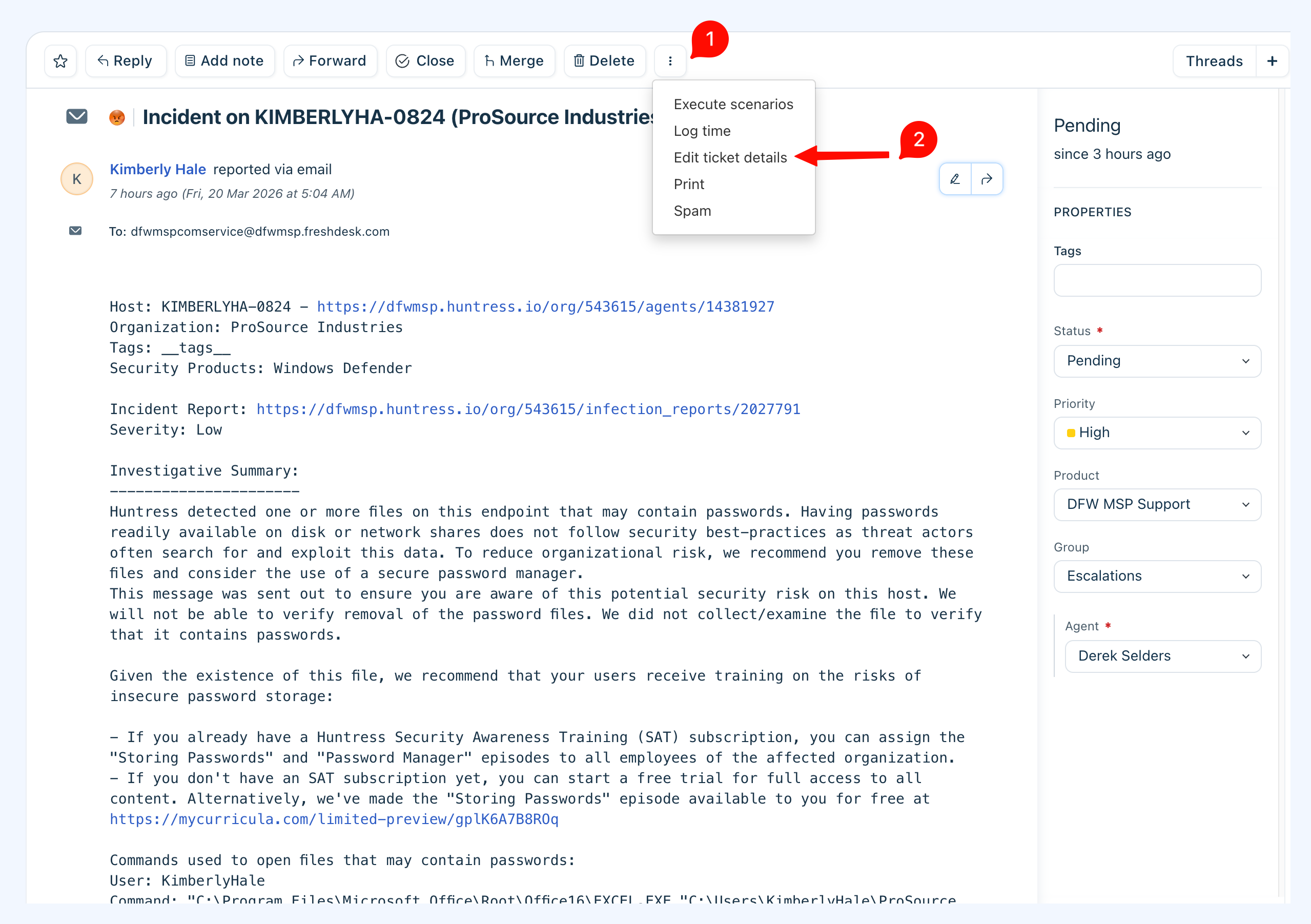
Open the ticket and select the three vertical dots at the top to access Edit Ticket Details.
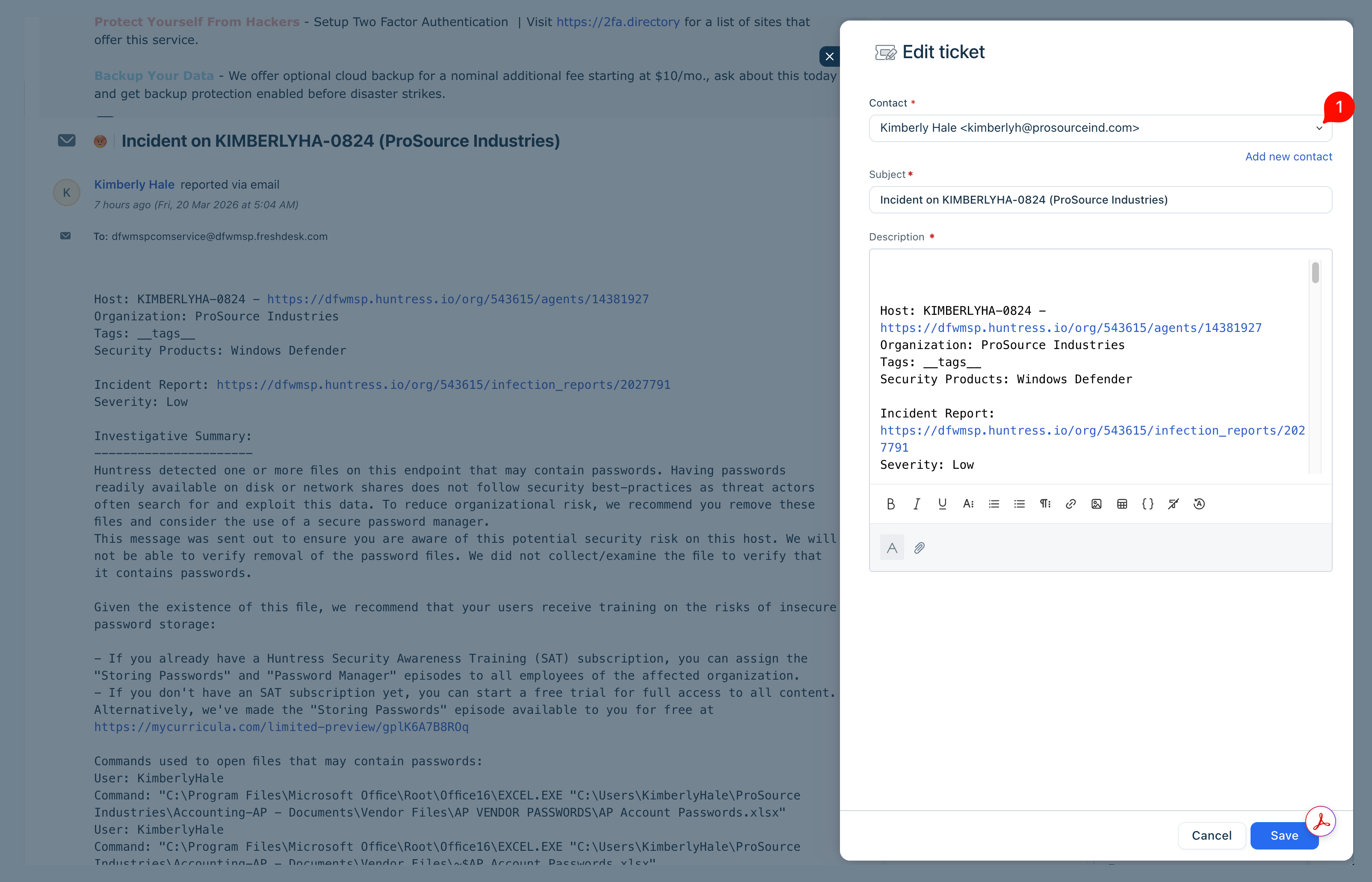
Update the ticket contact from Huntress Security to the affected end user. This ensures your reply is delivered to the user rather than the unmonitored Huntress notification address.
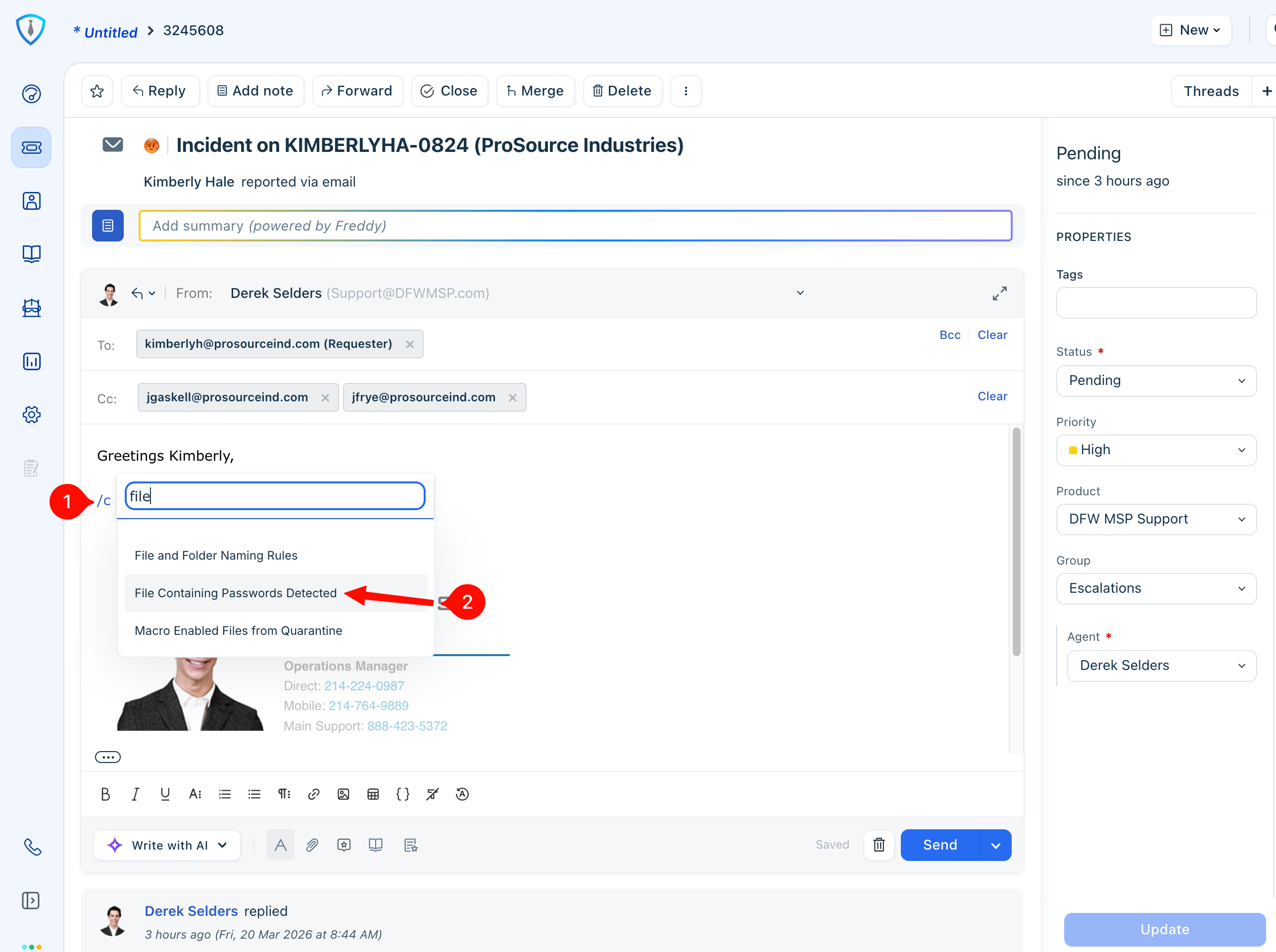
Insert the canned response (/c) "File Containing Passwords Detected" into the ticket reply.
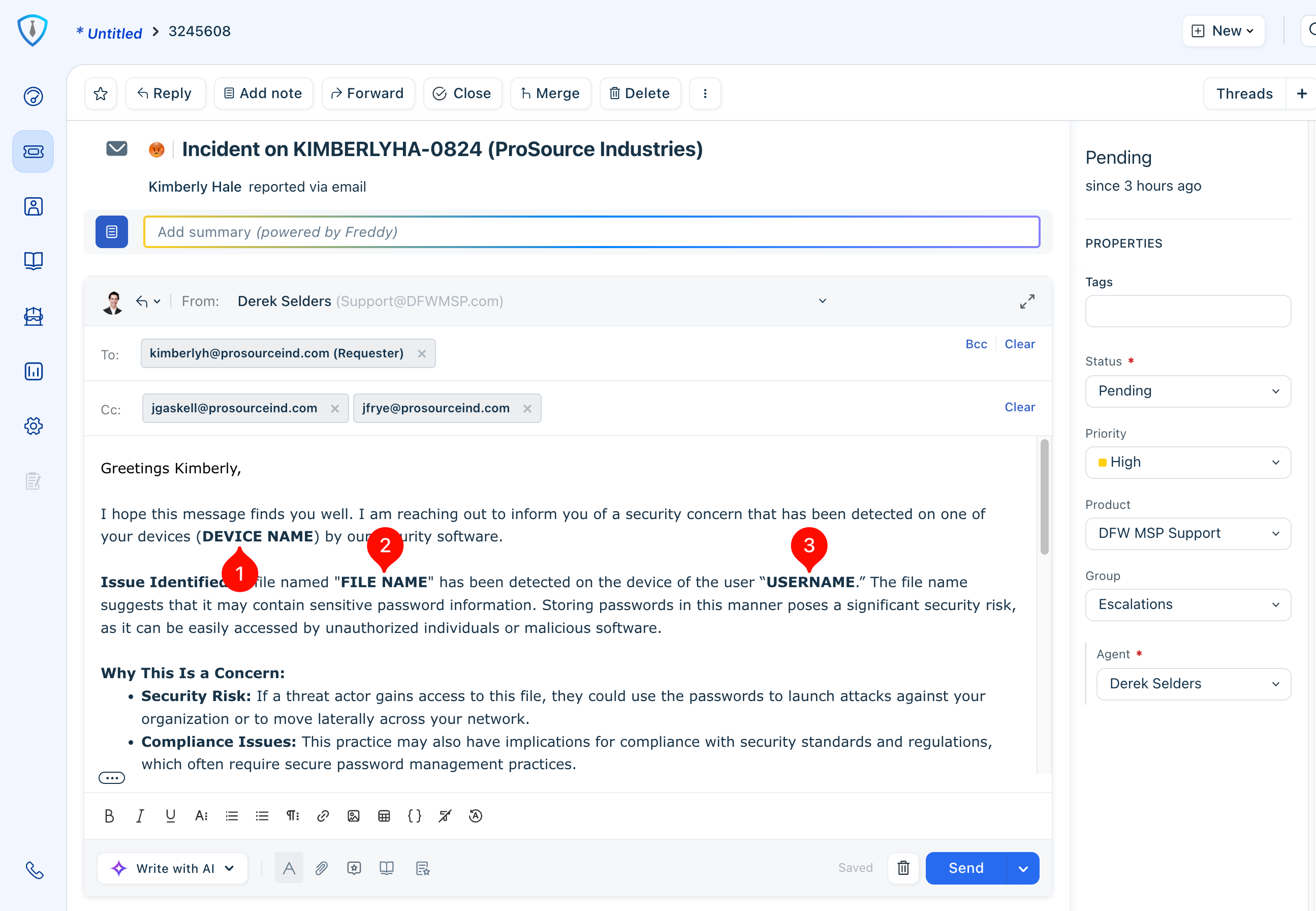
Update the bold, all-caps fields in the canned response to match the Huntress alert exactly:
- Device Name
- File Name
- Username
Copy these details directly from the Huntress alert and use Paste and Match Style to preserve formatting, ensuring the fields remain bold for visibility.
Check client-specific security communication preferences document here.
Reference the internal security contacts document to confirm whether additional recipients should be CC’d or BCC’d. If there is no client-specific information referenced in the security communications preferences document, confirm with a manager whether or not any additional contacts should be included in the communications.
Once all appropriate contacts are confirmed and included, review the full response for accuracy, clarity, and typos. Send the reply and set the ticket status to Pending.
Part 2: Assign Security Awareness Training (SAT) in Huntress
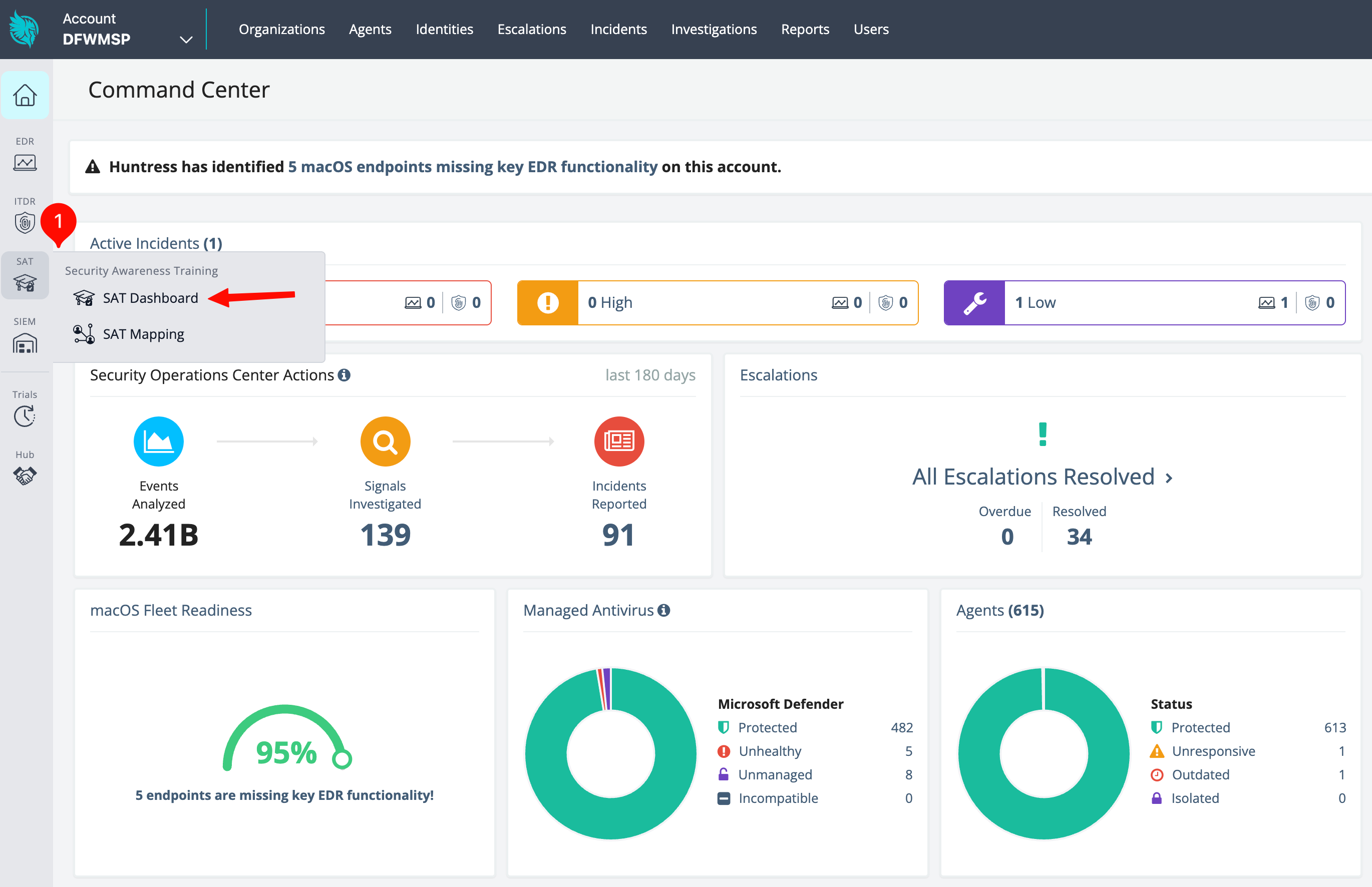
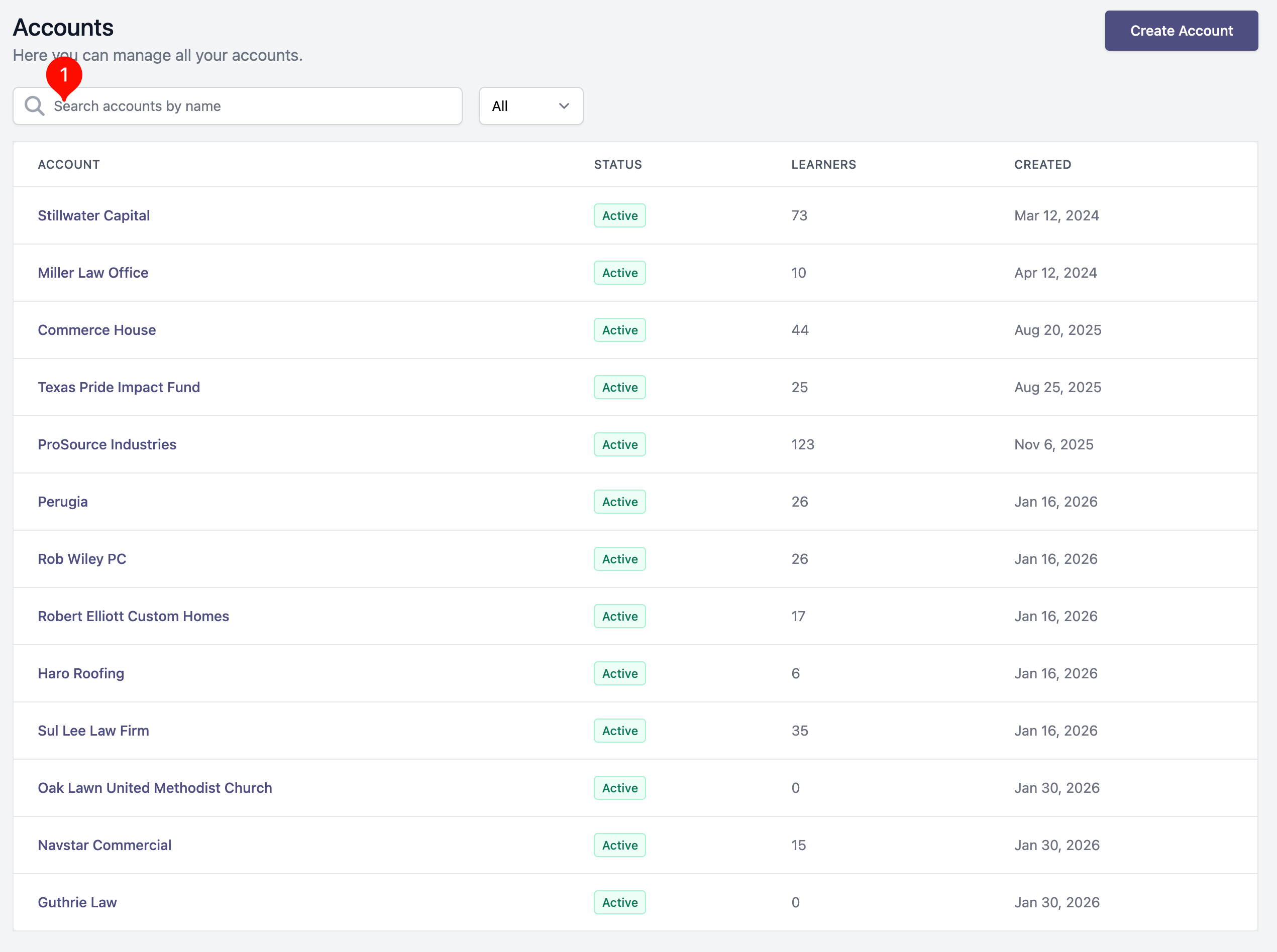
Log in to the Huntress SAT Dashboard and navigate to the appropriate organization.
Go to the Assignments tab.
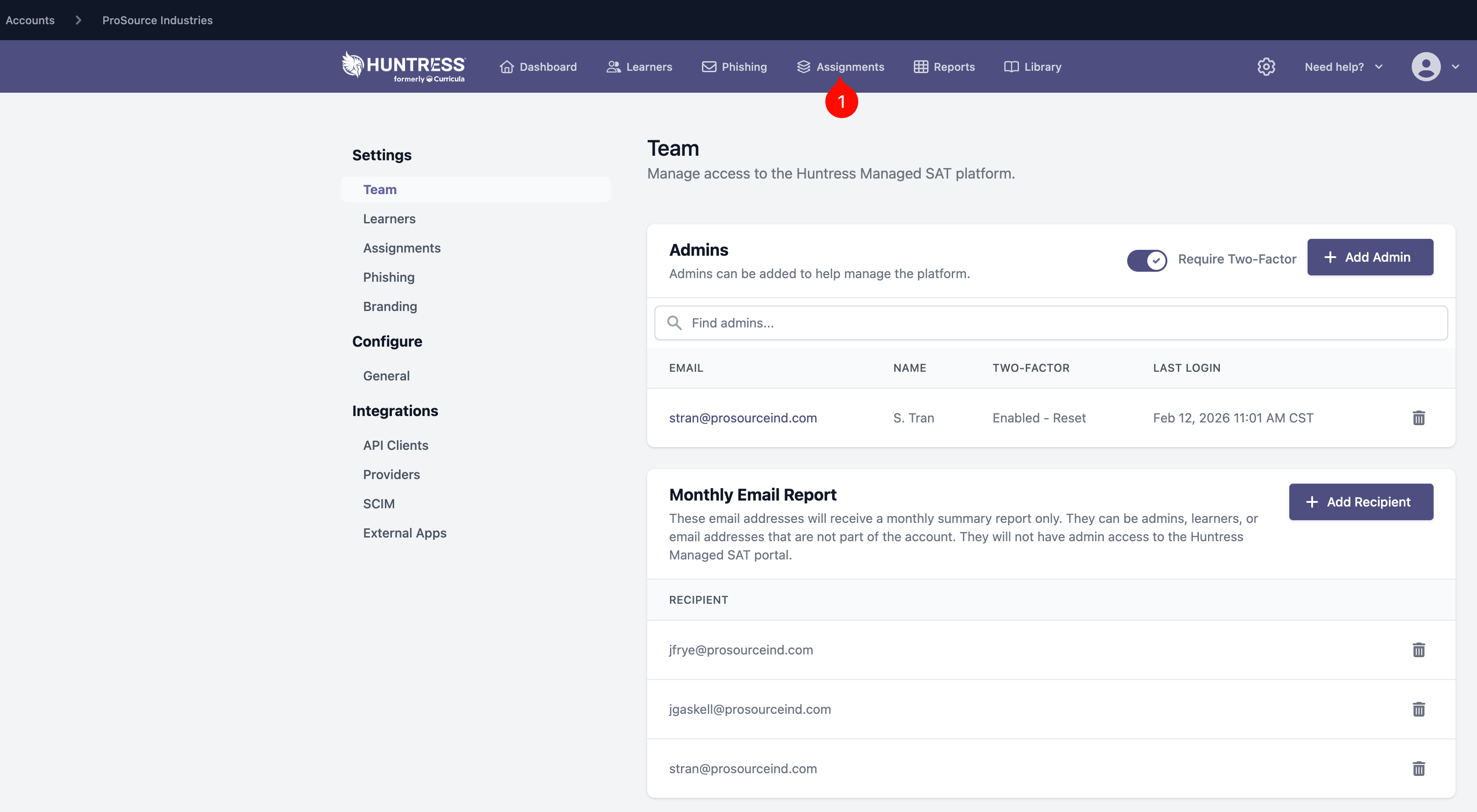
Review All Historical Assignments to determine whether a Password Security and Storage assignment already exists.
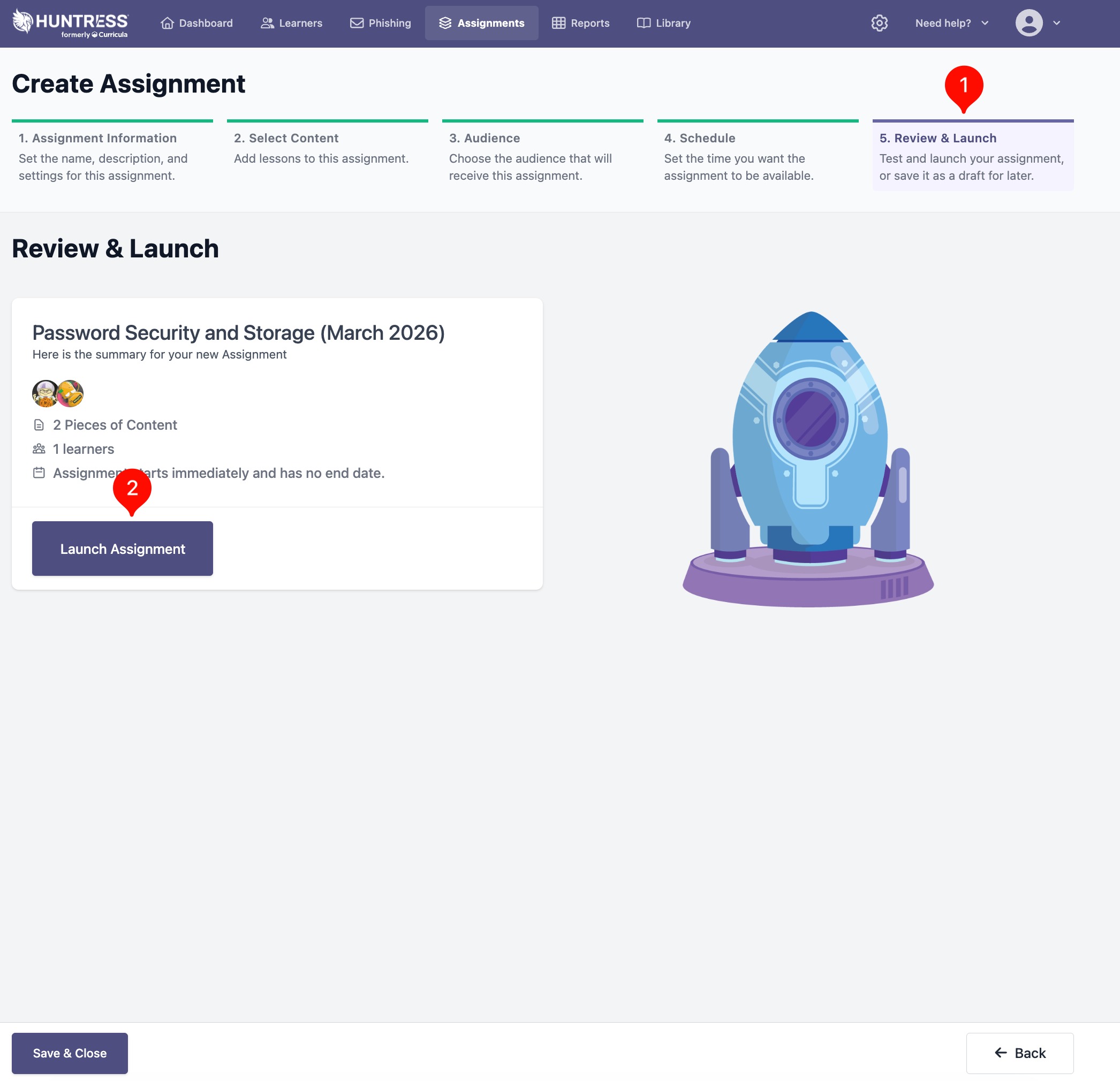
If none exists, create a new assignment named: Password Security and Storage (Month Year)
If a Password Security and Storage assignment already exists, add the user to the existing assignment. If the user is already assigned (indicating a repeat alert or repeat offender), escalate the ticket to your manager for further review and next steps.
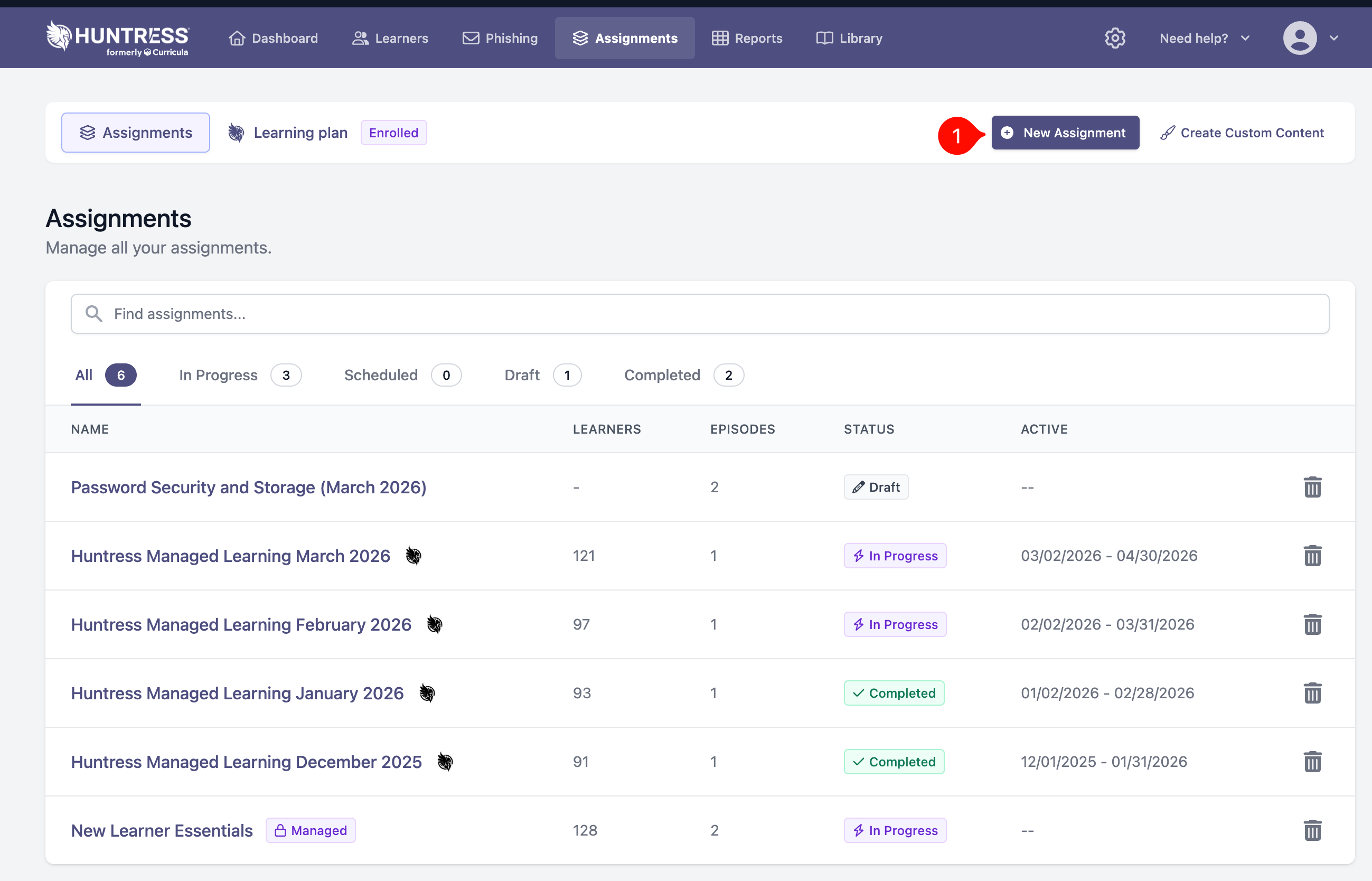
In Assignment Information, leave default settings and click Next.
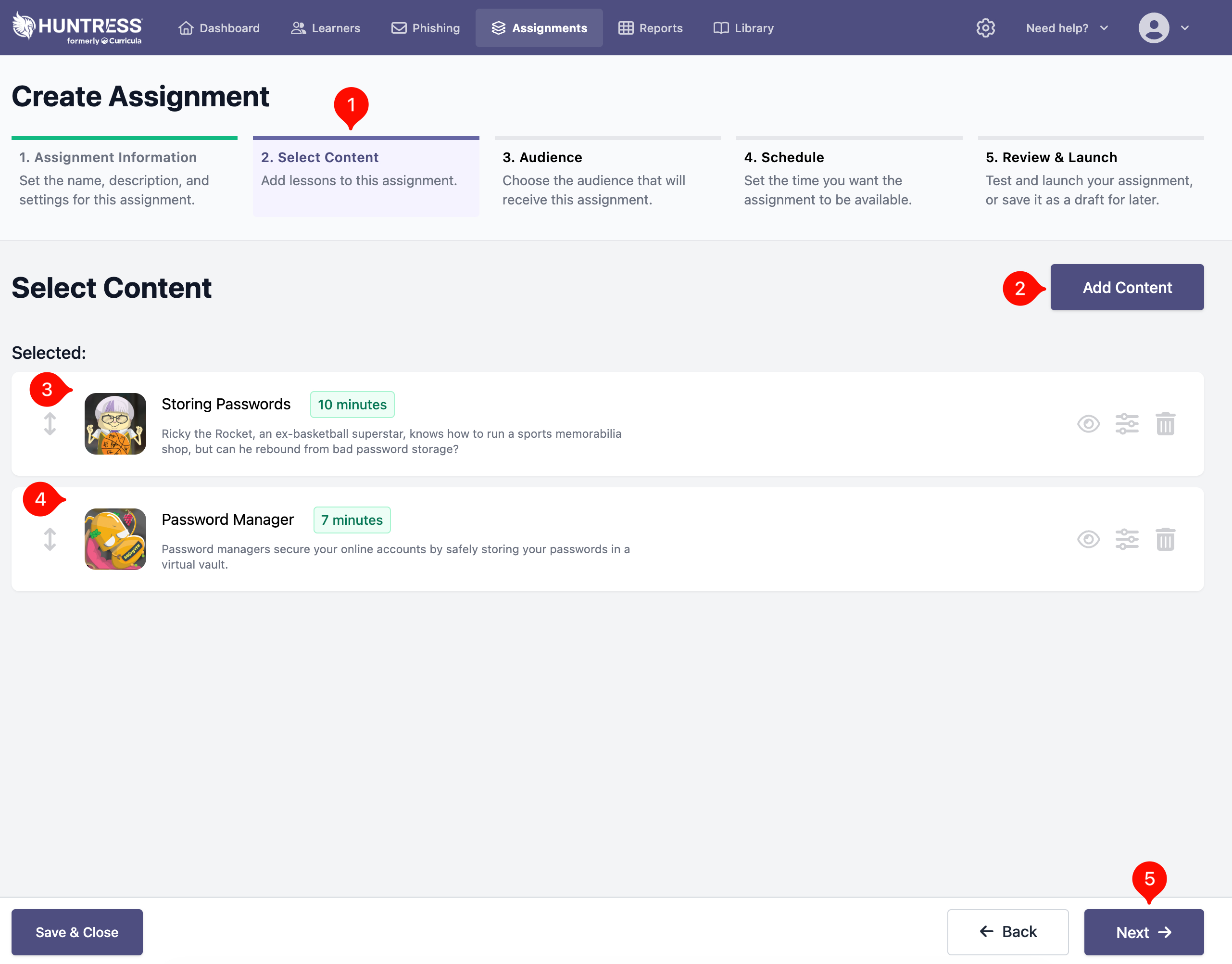
In the content section, add the following episodes in this order:
- Storing Passwords
- Password Manager
Then click Add Content and proceed.
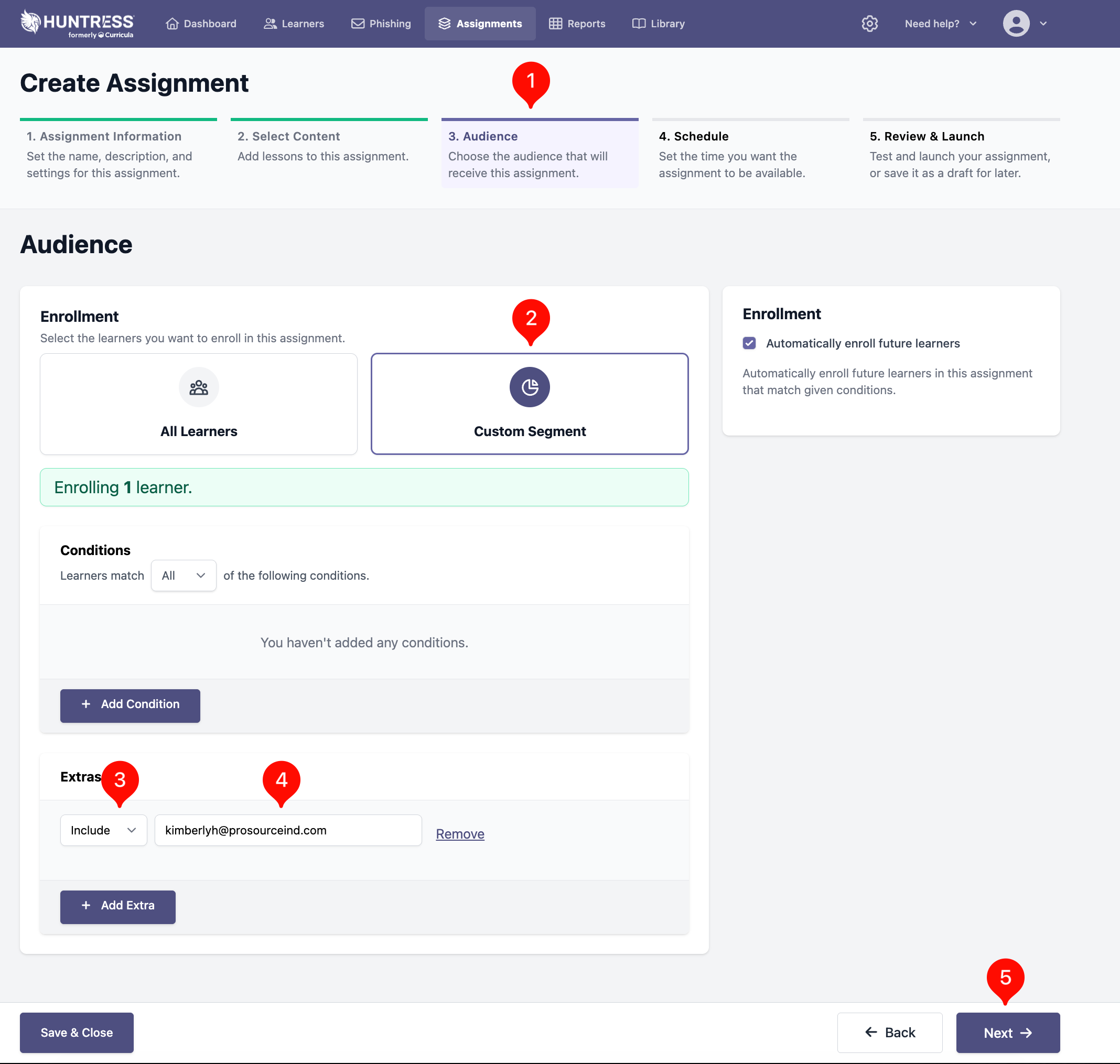
In Audience, select Custom Segment, then under Extras include the affected user. Click Next.
In Schedule, leave default settings and click Next.
In Review & Launch, click Launch to finalize the assignment.
That’s it. The alert has been addressed and the user has been assigned follow-up training. At this point, you can also "resolve" the alert in the Huntress administration portal.
Was this article helpful?
That’s Great!
Thank you for your feedback
Sorry! We couldn't be helpful
Thank you for your feedback
Feedback sent
We appreciate your effort and will try to fix the article